
Strands User Guide
Turn a song into a project for the Pioneer DJ Toraiz SP-16 and DJS-1000
Version 1.0
Strands takes a song, or the song split into stems, and makes a project for your SP-16 or DJS-1000; on the SP-16, the arranger plays it from start to finish. It finds the beat, cuts the song into short pieces that line up with the bars, lays them out on the pads, and saves everything as one package file you copy to the unit.
With stems, each part of the song, such as the drums, bass, other instruments and vocals, can come out of its own pair of outputs on the unit. Plug those outputs into separate channels on your mixer, and you can EQ, filter and fade each part of the track on its own.
You don't need to know anything about audio files or the SP-16's project format to use it. This guide walks through the three screens of the app in the order you use them.
How it works
The SP-16 doesn't play a whole song as one long sample. A project is made of patterns, short loops of a few bars, and an arrangement that plays the patterns one after another. So Strands cuts your song exactly on its bar lines, gives each piece its own pad and pattern, and writes an arrangement that plays them in order. Played from the arranger, the pieces join up seamlessly and you hear the whole song.
The one thing Strands needs to get right is where the beats and bars are. It works this out by listening to the audio, and it gets most songs right first time. When it doesn't, the Analysis screen has simple tools to put it right by ear.
Key terms
| Word | What it means |
|---|---|
| Stem | One part of a song on its own, such as the drums or the vocals. Stems are made by stem separation software, such as Traktor, other separation apps and online services, and come as separate audio files, or together in one .stem.mp4 file. Stems that a DJ app only separates live, without saving them as files, can't be used. Strands doesn't make stems itself; it uses the ones you give it. |
| Full song | The song as one file, with everything mixed together. |
| Beat grid | The lines Strands draws on the song where each beat falls. Brighter lines are the start of each bar. |
| Bar | Four beats. Count “1, 2, 3, 4”: the 1 is the start of the bar. |
| Pattern | A piece of the song up to 4 bars long. Each pattern plays its pads once, from its first step. |
| Lead-in | Any part of the song before the first full pattern, such as a pickup or a count-in. It gets a shorter pattern of its own so nothing is lost. |
| Lead-out | The last pattern, when the song ends before a full pattern does. It's padded with silence to the next beat, so it plays once and ends on the beat. |
| Scene | A page of 16 pads on the unit. With four stems a scene holds 4 patterns; with a full song it holds 16. |
| Pad, or track | One of the 16 pads in a scene. Each holds one sample. The unit calls them tracks and numbers them 1 to 16. |
| Output | A socket on the back of the unit. Outputs 1 to 8 work in pairs (1-2, 3-4, 5-6, 7-8) for stereo, or one at a time for mono. Master is the main output. |
| Package | The .tpkg file Strands saves. It holds the whole project, samples included, ready to load on the unit. |
How a song is cut up
Here the drums and bass come in a moment after the song starts, and that opening becomes the lead-in. Then the song is cut every 4 bars. Each pattern has one pad for each stem, and all four start together on the pattern's first step. Four patterns of four pads fill a scene of 16, so the next pattern starts Scene 2.
How a scene is laid out on the pads
A full song in one file has no columns: its 16 patterns fill the scene one pad each, starting at the top left and reading across and down.
Getting started
Installing
Unzip the download and keep the app wherever you like. There's nothing to install and nothing else to set up.
macOS
Strands runs on Apple silicon and Intel Macs with macOS 12 Monterey or later. The first time you open a downloaded copy, macOS stops it because the app isn't notarised by Apple. To allow it, once:
- Double-click Strands, then click Done on the message that appears.
- Open System Settings and go to Privacy & Security.
- Scroll down to the message about Strands and click Open Anyway.
- Confirm with your password if asked, then click Open Anyway again.
After that it opens like any other app.
Windows
Strands needs 64-bit Windows 10 (version 21H1 or later) or Windows 11. Run Strands.exe from the unzipped folder, keeping the files and folders beside it where they are.
If Windows shows Windows protected your PC, click More info and then Run anyway. This only happens the first time.
There is also a Linux build, for 64-bit Intel and AMD PCs. It has not been tested: it may not run, or parts of it may not work. Run Strands.x86_64 from the unzipped folder. The file browser needs GTK, which most desktop Linux systems already have.
A first run-through
- Add your music. On the Source screen, press Add files and choose a song, or all of its stems at once. Stems go on a strip each, in the strand colours.
- Press Analyse at the top right. Strands finds the tempo and the bars, which takes a few seconds.
- Listen. On the Analysis screen, press Space to play. The click should land on the beat, and each pattern should start on a “1”. If not, see Checking the beat.
- Press Export, look over the pads and options, then press Export package and choose where to save.
- Copy the
.tpkgfile to your SP-16 or DJS-1000, load it, and press play.
The top bar
The bar along the top is the same on every screen.
- 1 Source, 2 Analysis, 3 Export are the three screens, in the order you use them. Click one to go back to it; a screen you can't use yet is dimmed.
- Project name is the name the package is saved under, and the name the project has on the unit. Strands suggests one from your files; type over it to choose your own.
- Memory shows how much of the unit's 256 MB of sample memory the project will use, split by stem colour. See Memory and length.
- The bright button at the right is always the next step: Analyse, then Export, then Export package.
While Strands is working, four coloured dots light up in turn at the bottom left, beside a line saying what it's doing.
Step 1Source: adding your song or stems
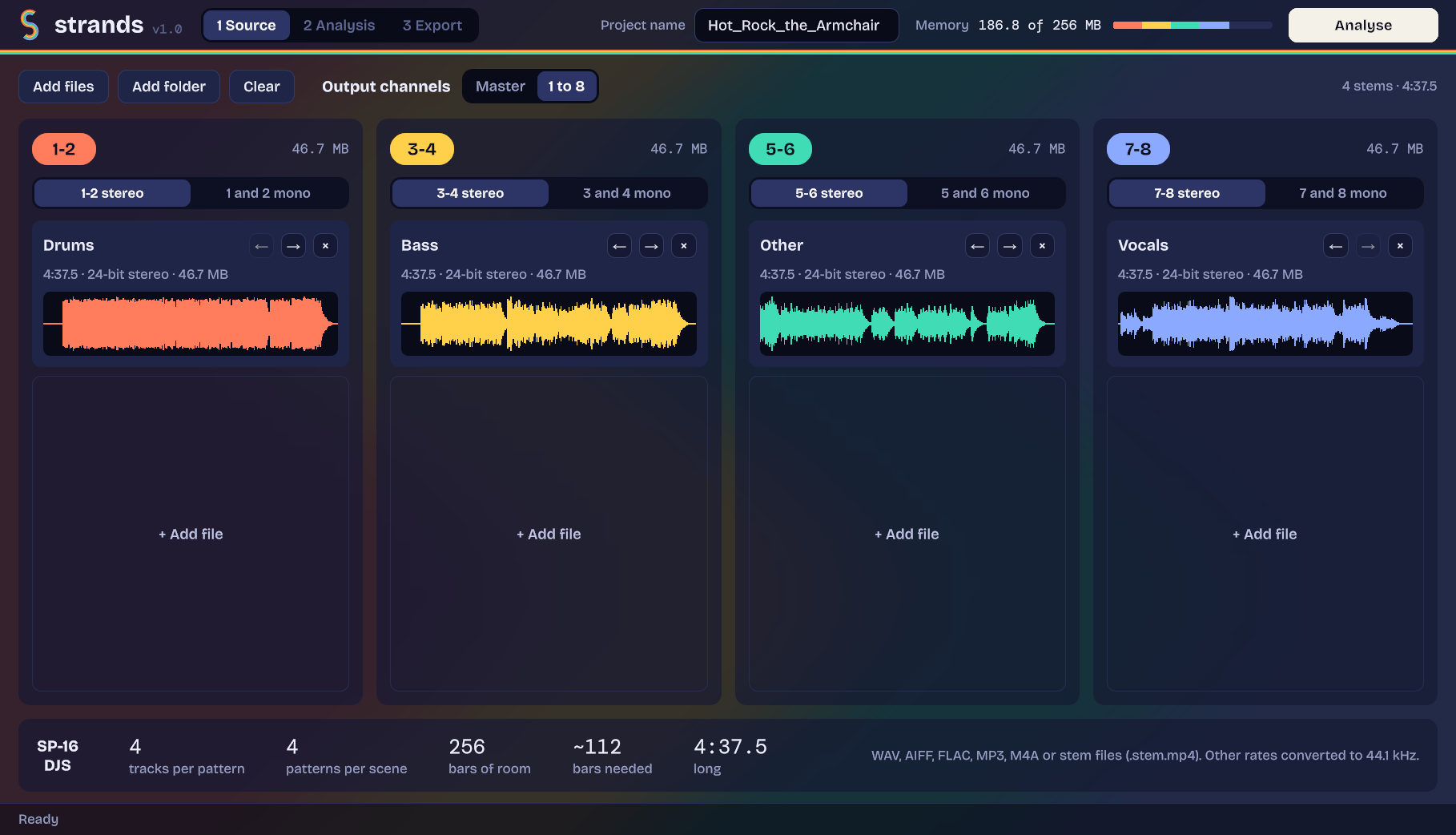
- 1The three screens. 2 Analysis becomes available once the files have been analysed.
- 2The project's name.
- 3How much of the unit's sample memory the project will use.
- 4Analyse finds the beat and takes you to the Analysis screen.
- 5Add files or a whole folder, or clear everything and start again.
- 6Where the sound comes out: each strip on its own outputs, or everything on master.
- 7A strip's outputs, in the strip's colour.
- 8Stereo on the pair, or each output on its own in mono.
- 9A file's card: its name, length, size and waveform. The arrows move it to the strip next door; × removes it.
- 10Click anywhere in the empty part of a strip to add a file to that strip.
- 11What the project will look like on the unit, and which file types Strands can read. Red text here explains why you can't go on yet.
Adding files
There are three ways to add music:
- Add files opens a file browser. Choose one file, or select all of a song's stems at once. Strands puts each stem on a strip by its name: files with “drum”, “bass”, “vocal” and so on in the name go to their usual strips.
- Add folder takes every audio file in a folder. It's handy when your separation software saves each song's stems in a folder of their own.
- + Add file, in the empty part of a strip, adds a file to that strip.
Strands reads WAV, AIFF, FLAC, MP3 and M4A/MP4 files, and stem files (.stem.mp4), which hold all of a song's stems in one file. A stem file puts its stems on the strips in its own order. Files at 48 kHz or other sample rates are converted to 44.1 kHz, the rate the unit plays. You can add up to 16 files at a time.
Strands only reads your files. It never changes or moves them.
One file, or several: three simple rules
- One file is a song. It plays from the master output, whichever strip it's on, and its waveform is drawn in several colours: violet for the low sounds, pink for the middle and white for the highs.
- More than one file is stems, always. Each strip has its own colour and plays from its own outputs (or from master, if you choose Master).
- Every file is a track of its own, unless its strip is set to Summed tracks.
Output channels: where the sound comes out
The switch beside Output channels has two settings:
1 to 8
Each strip plays from its own pair of outputs: 1-2, 3-4, 5-6 and 7-8. Connect each pair to its own mixer channel and every stem gets its own fader and EQ. This is the setting Strands starts with.
Master
Everything plays from the master output, as one stereo mix. Use it if you only connect the unit's main output. The stems are still separate pads, so you can still mute, loop and play them on their own on the unit.
Strands remembers your choice for next time.
A strip's own settings
- Stereo or mono. 1-2 stereo plays the strip's files in stereo on the pair. 1 and 2 mono splits the strip into two outputs, each playing in mono, and each file's card then shows which of the two it goes to (the to 2 button moves it to the other one). Mono uses half the memory, which suits parts that are mono anyway, like most bass lines and kick drums.
- Separate tracks or Summed tracks. When a strip has more than one file, it shows a second switch. Separate tracks keeps each file as its own pad. Summed tracks mixes them into one, which saves pads and memory. For example, you could put guitars and keys on the same strip and sum them, so they share a mixer channel. If the files are loud enough together to distort, the strip says Too loud summed, will distort as soon as you choose it; use Separate tracks or turn the files down.
Moving and removing files
- The ← and → buttons on a file's card move it to the strip on that side.
- You can also drag a card onto another strip. The strip you're over lights up. On a long strip, hold the card near its top or bottom and the strip scrolls, so you can reach the other output of a mono strip.
- × removes the file. Clear removes everything and lets go of the memory the song was using.
- Moving a file adds it to the files already on that strip; it doesn't swap them. To swap two files, move each one.
- Hover over a card to see the file's full name and folder.
The foot of the screen
The panel at the bottom says how the project will be laid out: how many tracks each pattern has, how many patterns fit in a scene, how many bars of room there are, how many bars the song needs and how long it is. The bars needed is an estimate, marked ~, until you press Analyse. If something stops you going on, it says why in red: for example, more than 16 tracks, more audio than fits in the unit's memory, or a song that needs more bars than there's room for.
When you're ready, press Analyse. If you come back to this screen later and only move files between strips or change the outputs, Strands keeps the beat grid you've already checked, so there's nothing to redo.
Step 2Analysis: checking and fixing the beat
This is where you check that Strands has found the beat, and put it right if it hasn't. Most of the time you just listen to the start and a few patterns, and move on.
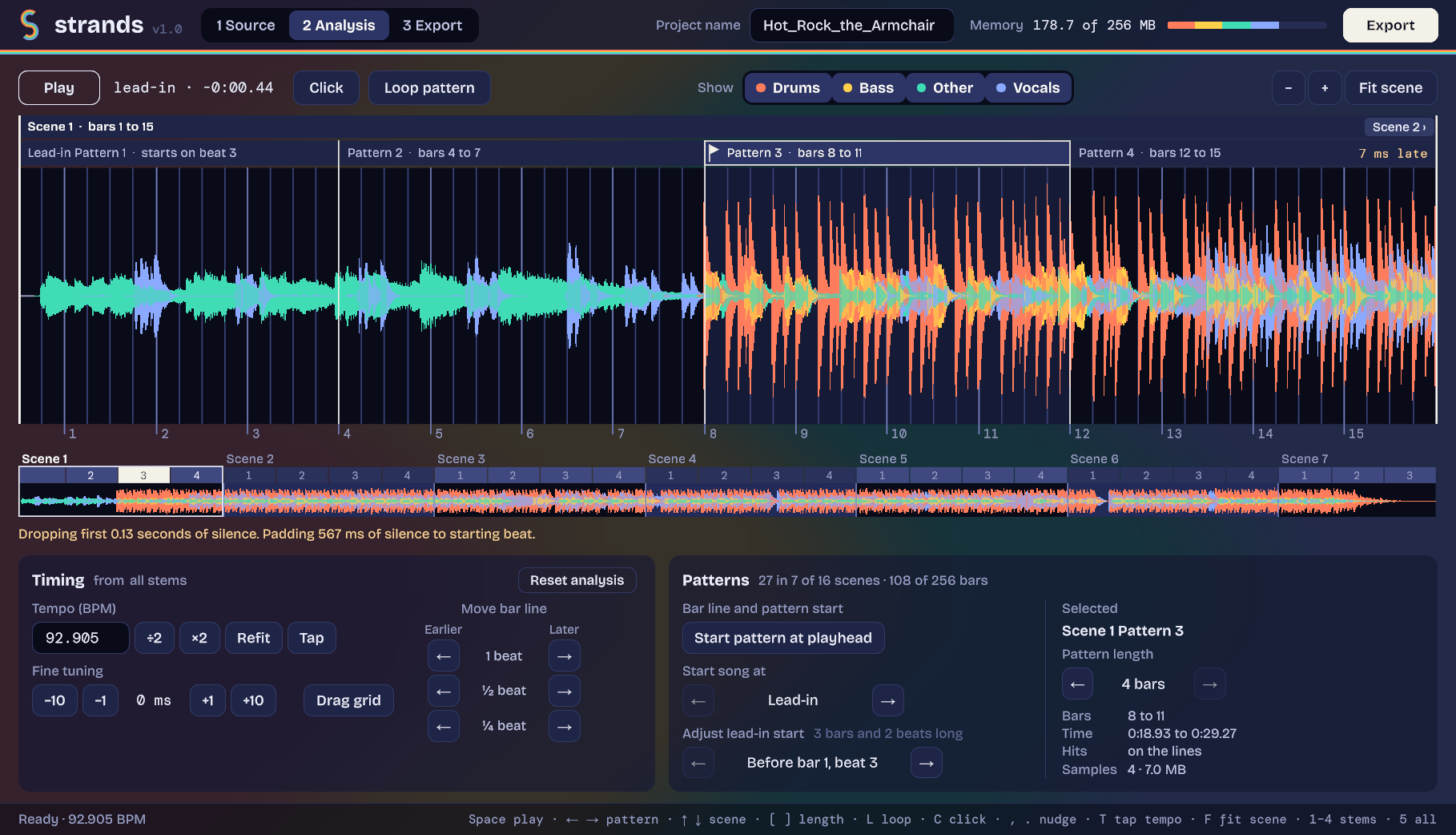
- 1Play, and where you are in the song.
- 2Click plays a metronome on the beats. Loop pattern repeats the selected pattern.
- 3Show: switch each stem on or off. What you see is what you hear.
- 4Zoom out, zoom in, and Fit scene to show one whole scene.
- 5The scene, and its patterns. Click a pattern to select it.
- 6The flag: the pattern Strands counts the others from, usually where the drums come in.
- 77 ms late: how far this pattern's drum hits sit from the grid lines, shown at 3 ms or more; you won't hear it when the song plays through, so one marked pattern can be left as it is. A pattern too narrow for the words, such as one shortened to a bar, gets a yellow line along the bottom of its block instead, and the figure is on the Hits line when it's selected. A short pattern has fewer hits to average, so it's marked more readily.
- 8The song, with the beat grid over it. The brighter lines are bar lines; the numbers under them count the bars.
- 9The whole song, with every scene and pattern. Click or drag on the waveform to jump anywhere; click a pattern's number to go to the start of that pattern, or a scene's name to go to its first pattern.
- 10Notes about the song, in yellow. Red means it can't be exported yet, and says why.
- 11The tempo, and tools to change it.
- 12Move bar line: shift the grid earlier or later by a beat, half a beat or a quarter.
- 13Fine tuning in milliseconds, and Drag grid.
- 14Reset analysis undoes all your timing changes.
- 15Start pattern at playhead: the quickest fix for a grid that's out.
- 16Start song at: leave out an intro you don't want, a pattern at a time.
- 17Adjust lead-in start: leave out the start of the song a beat at a time.
- 18The selected pattern: its name, length, where it is in the song and how many samples it has.
- 19A reminder of the keyboard shortcuts.
Listening and moving around
- Press Play or Space. The click is on to start with; switch it with Click or C.
- Click on the waveform to move the playhead. While it's playing, a click jumps to the start of the beat you clicked, so the music stays in time. When it's stopped, it goes exactly where you click. Hold Shift to go exactly where you click while playing too.
- Scroll on the waveform to zoom in and out, and drag it to move along the song. Fit scene or F shows the whole scene again.
- ← → select the pattern before or after; ↑ ↓ go to the scene before or after.
- Loop pattern or L repeats the selected pattern, which is the best way to hear whether it loops cleanly.
- Show switches stems on and off, so you can listen to the drums against the click on their own. The keys 1 to 4 switch each strip; Shift with a number plays that strip by itself (press it again for all of them), and 5 turns them all back on. With every stem off, you only hear the click.
Checking the beat
Play from the start with the click on, and ask yourself two things:
- Is the click on the beat? It should land on the kick drums, not between them.
- Does each pattern start on a “1”? The start of each pattern should feel like the start of a bar, not somewhere in the middle of one. Selecting a pattern and turning on Loop pattern makes this easy to hear: a pattern that starts in the right place loops round smoothly.
Then jump to a few places later in the song, using the strip along the bottom, and check again.
On the waveform, the beat lines should sit on the front edge of the drum hits. Here's what the usual problems look like, and the button that fixes each one:
| What you hear or see | What to do |
|---|---|
| The click is between the kicks | Move bar line by ½ beat, either way. |
| The click is on the beat, but patterns start in the middle of a bar | Move bar line by 1 beat, earlier or later, until a pattern starts on the “1”. Or use Start pattern at playhead (below). |
| The click is a little early or late all the way through | Fine tuning: -1 and +1 move the grid by a millisecond, -10 and +10 by ten. Or use , and ., with Shift for ten. |
| The click is twice as fast, or half as fast, as the music | Press ÷2 or ×2. |
| The click starts in time but drifts away later in the song | The tempo is slightly off. Press Refit. If that doesn't do it, tap Tap (or T) in time with the beat for a few bars, then press Refit to tighten it up. |
| You know the tempo | Type it in the tempo box and press Return. |
| It's got in a muddle | Reset analysis puts everything back to how Strands first found it. |
Start pattern at playhead: the quickest fix
If the grid is out, this one button usually puts it right:
- Find a place where a pattern really should start: the first kick of the drop, or the start of the verse. Zoom in so you can see the hit clearly.
- With playback stopped, click on the front edge of that hit to put the playhead there.
- Press Start pattern at playhead.
Strands moves the grid so that a bar line, and the start of a pattern, falls exactly there, and then fine-tunes the lines so they sit on the drum hits. The flag on the lane moves to that pattern. Patterns are counted from there in both directions.
Drag grid
Switch on Drag grid and dragging the waveform moves the beat grid instead of the view, so you can slide the lines onto the hits by eye. Switch it off again to drag the view.
The beginning of the song
Songs rarely start exactly on a bar line. Whatever comes before the first full pattern becomes the lead-in: a shorter pattern of its own, so the opening isn't lost. Strands pads it with silence at the front so that it starts on a beat, and the notes under the waveform say how much. Silence at the very start of the file is left out.
The end works the same way. If the song ends part way through its last pattern, that pattern becomes the lead-out: Strands pads it with silence to the next beat and makes its pattern exactly that long, so the arranger plays it once and stops on the beat.
There are two ways to leave out the start of a song:
- Start song at drops whole patterns. Press → to start at Pattern 2, then Pattern 3 and so on, which is useful for a long intro you don't need. ← brings them back. The part you've left out is shown dimmed on the strip along the bottom.
- Adjust lead-in start drops one beat at a time from the front, for example a count-in or a stray note before the first beat. It shows the bar and beat where the song now starts (“Bar 1, beat 2”) and how long the lead-in is.
Neither changes the beat grid; they only change where the package starts.
Pattern length
Patterns are 4 bars long, but some songs add or drop a couple of bars somewhere, for example before a chorus. After that, the big moments land in the middle of a pattern instead of at the start.
To fix it, select the pattern just before the point where things go out, then shorten it under Pattern length with ← (or [). It can be 1 to 4 bars. Everything after it moves along to match, and nothing before it changes. → (or ]) makes it longer again.
The lead-in's length is set by where the song starts, and the last pattern runs to the end of the song, so neither can be changed here.
The notes under the waveform
The line between the song strip and the panels tells you about anything Strands has done or found. In yellow, it's for information: silence it has left out at the start, silence it has added in front of the lead-in or after the lead-out, or stems that are too loud when added together. In red, it's the reason the song can't be exported yet, such as too many patterns or too much audio for the unit.
When you're happy, press Export.
Step 3Export: pads, options and saving
This screen shows the project as it will be on the unit, lets you play the pads, and sets how they behave when you play them yourself.
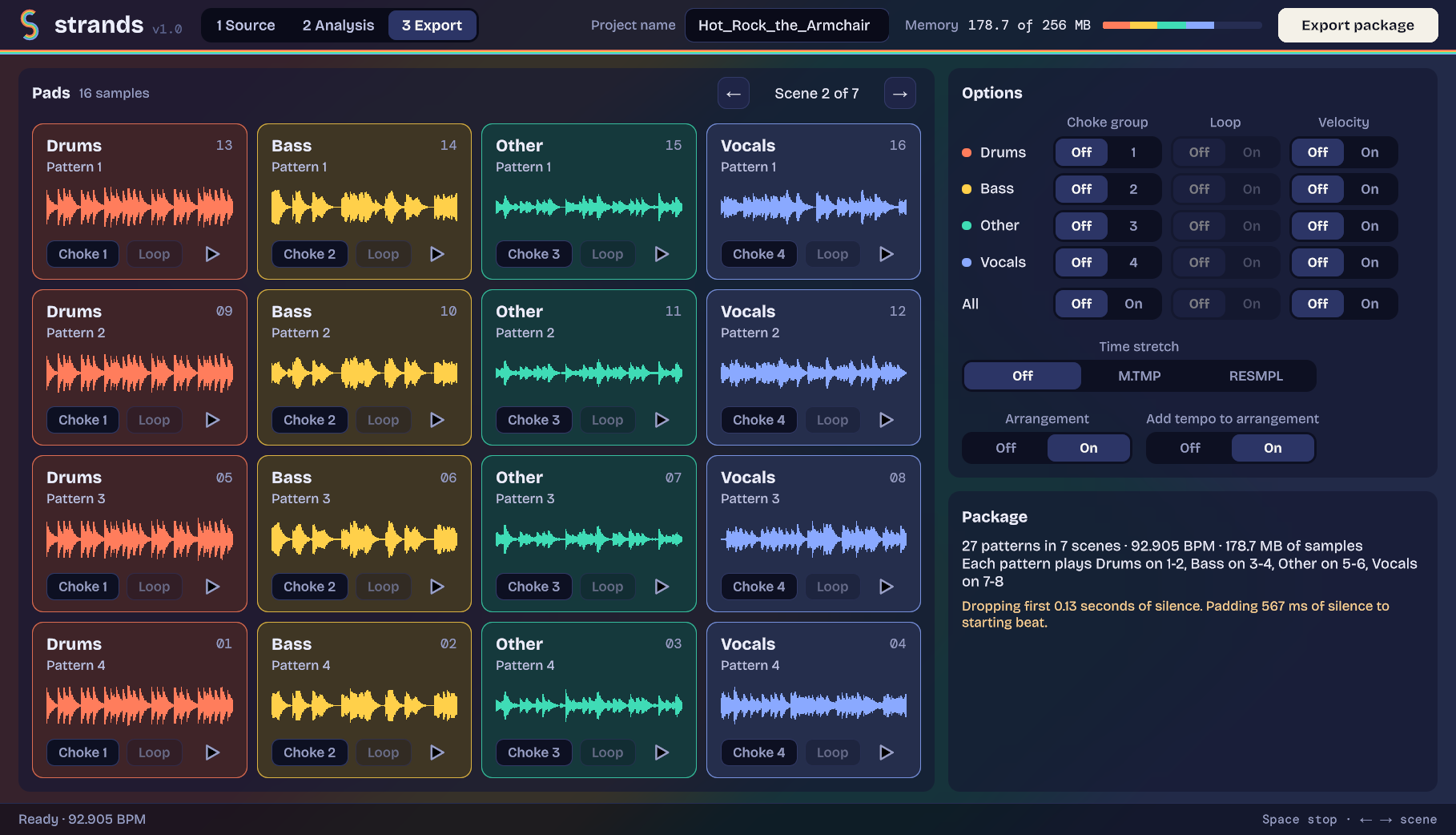
- 1A pad, laid out as on the unit: the stem's name and colour, the unit's track number, the pattern it belongs to and its waveform. Click it to hear it.
- 2The pad's own Choke and Loop buttons, and its play sign.
- 3Step through the scenes, or use ← →.
- 4Choke group, loop and velocity for each stem.
- 5The same for every pad at once.
- 6Time stretch, for the whole project.
- 7Whether the unit opens with the arranger on.
- 8Whether the arrangement holds the unit to the song's tempo.
- 9A summary of the package, and where it was saved.
- 10Export package saves the
.tpkgfile.
Playing the pads
- Click a pad to play its sample from the start. Click it again to restart it. You can play several at once.
- To stop a pad, click its ■ sign, or hold Shift and click anywhere on the pad. Stop, at the top of the pads, or Space, stops them all.
- A playing pad has a pale edge and a line moving across its waveform.
- Pads play as they will on the unit: looped pads go round (with the arrangement off), and choked pads cut each other off. They play at the song's own tempo; time stretch isn't heard here.
- A pad that reads Empty has nothing on it. Strands leaves out samples that are silent, or as good as silent, such as the vocal stem during an instrumental part. They'd only take up memory.
Choke groups
Pads in the same choke group cut each other off: start one, and any other pad in its group that's playing stops. With a stem's pads in a choke group, you can jump between its patterns while playing pads by hand, and you only ever hear one at a time, just as in the song.
Each stem gets a group of its own, so the drums only cut off drums, never the vocals. Off lets pads overlap, which is what you might want for vocal phrases or one-shots.
Loop
A looped pad plays round and round until you stop it, rather than playing once. It's useful for holding a groove going under a mix, or building a section live.
Loops are for playing pads and patterns by hand, so they only work with Arrangement off. With it on, the Loop switches and the pads' Loop buttons are greyed and nothing loops in the package; what you'd set is kept, and comes back when you switch the arrangement off.
Velocity
With velocity on, a pad plays louder or softer depending on how hard you hit it, as on the unit itself. Off, every hit is at full level, which suits playing a stem's patterns back as they are.
Setting stems, or single pads
- A stem's row under Options sets every pad of that stem. All sets every pad in the project.
- A pad's own Choke and Loop buttons set just that pad. Velocity is set by stem only.
- Strands remembers what you leave the Options set to and starts the next song from it: time stretch, both arrangement switches, and each strip's choke group, loop and velocity, so the drums on the first strip stay choked from one song to the next. Settings on single pads apply to that song only.
- Whichever you set last wins. So you can loop all of the drums, then switch the loop off on one pad.
- A row shows what you last set it to, which isn't always what every one of its pads is now.
Time stretch
This decides what the samples do when the unit's tempo changes, for example when you move its tempo control or sync it to other players with Pro DJ Link.
| Setting | What happens when the tempo changes |
|---|---|
| Off | The samples play at their own speed, as in the original song. This is the default, and the right choice for playing the song as it is. |
| M.TMP | Master tempo: the samples speed up or slow down with the tempo and keep their pitch, like master tempo on a CDJ. |
| RESMPL | Resample: the samples speed up or slow down with the tempo and their pitch goes up or down with it, like a turntable's pitch fader. |
Arrangement
The DJS-1000 has no arranger, so these two only matter on the SP-16.
- Arrangement: On opens the project on the unit with its arranger switched on, ready to play the song from start to finish. Off opens it ready for playing pads and patterns by hand, and lets pads loop. The arrangement is saved in the project either way, so you can switch the arranger on later on the unit.
- Add tempo to arrangement: every project opens at the song's tempo either way. On also stores the tempo in each section of the arrangement, so the arranger goes back to the song's tempo as it plays, whatever the unit has been set to since. Off leaves it to the unit, so the song follows whatever tempo the unit is set to or synced to.
Strands sets Add tempo to arrangement for you when you change Time stretch: On with stretch Off, so the song plays at its own speed; Off with M.TMP or RESMPL, so the song follows the unit's tempo. You can still change it afterwards.
Saving the package
Press Export package (or Cmd+E on a Mac, Ctrl+E on Windows) and choose where to save it. When it's done, the Package panel says where the file went, with a Show in folder button to find it.
The Package panel also sums up the project: how many patterns and scenes there are, the tempo, the memory used, and which stem comes out of which output. Under that come any notes, each on a line of its own.
On the unit
- Copy the
.tpkgfile to your SP-16 or DJS-1000, the same way you'd copy any project package to it. - Load the project on the unit.
- On the SP-16, with the arrangement on, press play: the song plays from start to finish. The DJS-1000 has no arranger: you play the patterns yourself.
With stems on outputs 1 to 8, connect each pair of outputs to its own channel on your mixer: 1-2 for the first strip, 3-4 for the second, and so on. A strip you set to mono uses each output of its pair on its own. Strands also colours each stem's pads on the unit to match the strips: colours 1, 5, 9 and 13 in the unit's palette.
Memory and length
The SP-16 and DJS-1000 have 256 MB of memory for samples. The memory meter at the top of every screen shows how much of it your project will use, in the stem colours. It turns yellow when the project is nearly full (over 85%), and red when it won't fit. On the Source screen it's an estimate until you press Analyse; after that it shows the package's own figure, which is often a little less because silent samples are left out, until you change the strips.
- Four stereo stems use about 40 MB a minute, so they fit up to about 6 minutes. A full song as one file uses a quarter of that.
- To make room: set a strip to mono (half the memory), sum two stems into one, or remove a stem you don't need.
- Silent samples are left out automatically and use no memory.
There's also a limit on length: a project holds 16 scenes. With four stems that's 64 patterns of 4 bars, or 256 bars, which is about 8 minutes at 130 BPM. The more tracks each pattern has, the fewer patterns fit in a scene, so a long song may only fit with fewer tracks. The foot of the Source screen shows the bars of room beside the bars the song needs, in red when it won't fit, and says how many tracks it fits with. Mono saves memory but not pads, so it doesn't help here. The top of the Patterns panel shows how many bars you're using.
The units play between 60 and 220 BPM. If the tempo is outside that range, a note in yellow beside Tempo (BPM) says so. The song can still be exported, but it won't play in time on the unit.
Problems and questions
Analyse is dimmed
The foot of the Source screen says why in red. Either there are more than 16 tracks, the audio is silent (Audio is silent. Nothing to export.), or the last analysis found the project needs more memory or more patterns than the unit has. Set a strip to Summed tracks or remove some files, and Analyse comes back on. Mono also helps when the problem is memory, but not when the song has too many tracks for its length. The beat grid is kept, so it goes straight to the Analysis screen.
The notes under the waveform are red
The song can't be exported as it is, and the note says why: usually a change of tempo has made it too large to fit, in memory or in patterns. See Memory and length.
A file won't load
Strands can't read copy-protected files, such as tracks downloaded for offline listening from a streaming service. Apple Lossless files, stem files included, and some low bit rate .m4a files (HE-AAC) can only be read on a Mac. Any other file that won't load may be damaged; try opening it in another app.
The beat is right at the start but wrong later on
Strands uses one steady tempo for the whole song. Try Refit, or Tap and then Refit. A song whose tempo changes, or one played by a live drummer without a click, won't line up all the way through.
The stems are out of step with each other
Strands takes it that all the stems start at the same moment, as your separation software saved them. Use stems from the same separation of the same song, without trimming any of them.
The stems sound quieter than the original song
Separated stems, added back together, are often a little quieter than the original. That's down to the separation, not to Strands. Turn up the channels on the mixer to match.
I can't hear one of the stems on the Analysis screen
Check that its Show button is on, or press 5 to turn them all on.
Does Strands change my files?
No. It only reads them. Everything it makes goes into the package you save.
Keyboard and mouse
Shortcuts don't work while you're typing in a box, such as the project name or the tempo; press Return or click elsewhere first. On Windows and Linux, use Ctrl where this says Cmd.
Analysis screen
| Key | Action |
|---|---|
| Space | Play / pause |
| ← → | Previous / next pattern |
| ↑ ↓ | Previous / next scene |
| [ ] | Make the selected pattern a bar shorter / longer |
| L | Loop pattern on / off |
| C | Click on / off |
| , . | Move the grid 1 ms earlier / later (10 ms with Shift) |
| T | Tap tempo |
| F | Fit scene |
| - = | Zoom out / in |
| 1 – 4 | Switch a strip's stems on / off |
| Shift + 1 – 4 | Play that strip by itself (again for all) |
| 5 | All stems on |
| Cmd + E | Go to Export |
Export screen
| Key | Action |
|---|---|
| ← → | Previous / next scene |
| Space | Stop all pads |
| Cmd + E | Export package |
Mouse
| Where | Action |
|---|---|
| Waveform, click | Move the playhead: to the start of the beat while playing, exactly where you click when stopped |
| Waveform, Shift + click | Move the playhead exactly where you click, even while playing |
| Waveform, scroll | Zoom in and out |
| Waveform, drag | Move along the song, or move the grid with Drag grid on |
| Pattern on the lane | Select it |
| Song strip, click or drag | Jump to that part of the song |
| Song strip, click a pattern number or scene name | Go to the start of that pattern, or of the scene's first pattern |
| Pad, click | Play it from the start |
| Pad, Shift + click, or its ■ | Stop it |
| File card, drag | Move the file to another strip |
Your music
Use Strands with music you own or have the rights to use.
- Buying a track usually gives you a licence to play it yourself. Splitting it into stems and loading it on your own unit to perform with is the kind of thing DJ software does every day.
- Packages, stems and samples made from commercial music are for your own use. Don't share or sell them, or release music made from them, without the rights holders' permission.
- If you play out in public, the venue or you may need the usual performance licences. In some countries, copies made for DJing need a licence of their own; check what applies where you play.
- Strands can't read copy-protected files, and doesn't try to.
This isn't legal advice. If you're unsure, ask the rights holder or a music licensing body in your country.